
Plugins & Tools
Tools are what the agent can actually do — read a file, run a command, search the web. DotCraft draws them from three places: built-in tools (file, shell, web, search, plan, todo — shipped with DotCraft), plugins (extra tools and skills you or others package up), and MCP servers. You decide which ones are on.
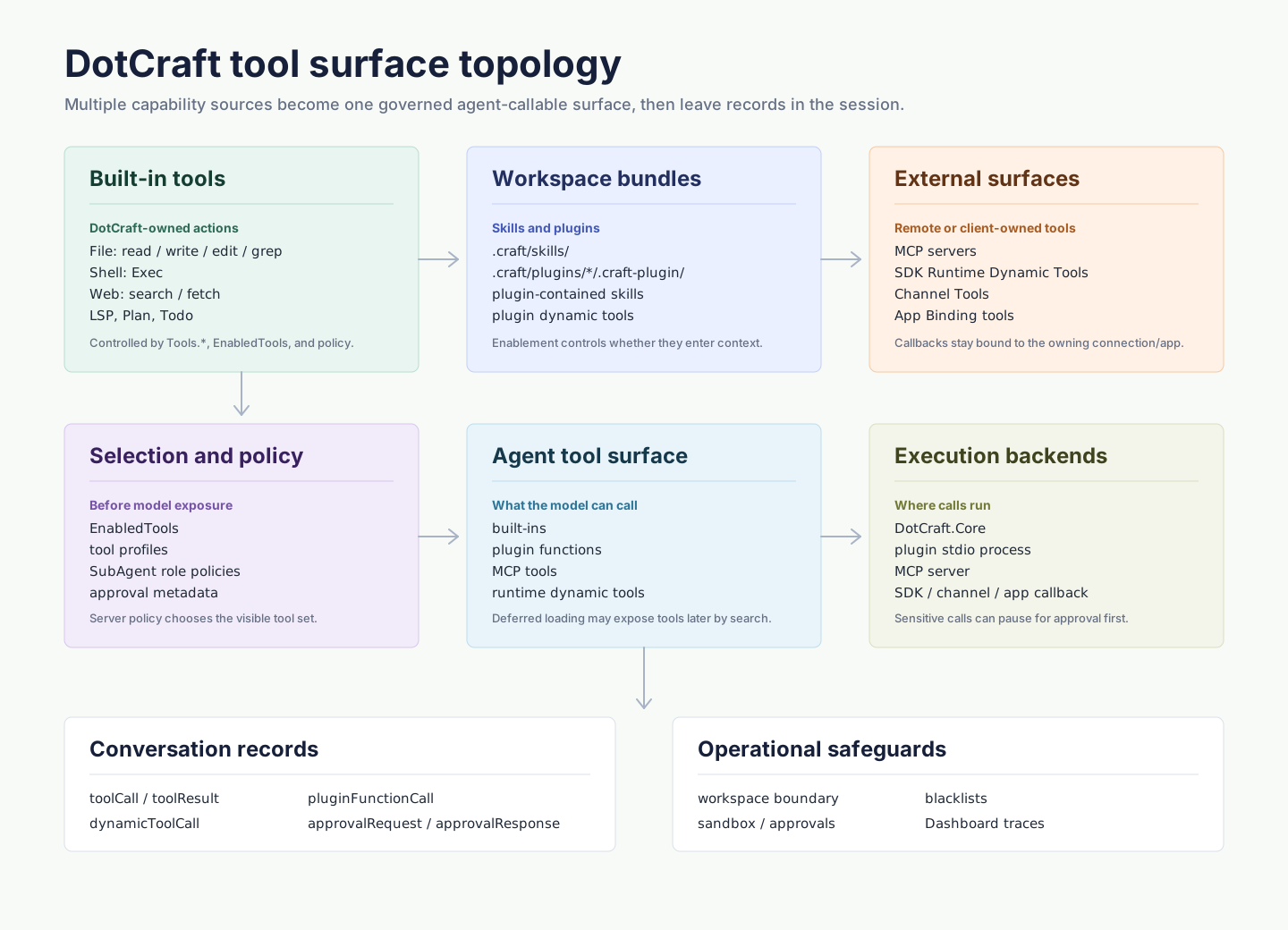
Built-in Tools
DotCraft ships a default toolbelt that covers most coding agent needs:
| Category | Representative tools | Controlled by |
|---|---|---|
| File | ReadFile / WriteFile / EditFile / GrepFiles / FindFiles | Workspace boundary and security policy |
| Shell | Exec | Approval policy, timeout, and sandbox |
| Web | WebSearch / WebFetch | Network and fetch limits |
| LSP | Built-in LSP tools | Optional LSP tool settings |
| Plan / Todo | CreatePlan / UpdateTodos / TodoWrite | Subagent role policies |
ReadFile reads text files and returns supported images as vision input. PDF and other binary files are rejected with a guidance message instead of being decoded as text.
Tool switches, allow-lists, web limits, and LSP settings are listed in the Configuration Reference.
Install & Use Plugins
A DotCraft plugin packages reusable workspace capabilities into an installable extension. A plugin can ship:
| Content | Description |
|---|---|
| Dynamic tool | Agent-callable tool, optionally executed by a local stdio process |
| Skill | Plugin-contained skill that joins the skill list when the plugin is enabled |
| Metadata | Name, description, developer, category, icon, default prompt, related links |
Plugin-bundled skills follow plugin lifecycle: available when the plugin is enabled, hidden when disabled or removed.
Install in Desktop

- Open DotCraft
- Go to Plugins
- Search or browse, open a plugin's detail page
- Click Install
- Click Try in chat when ready, or describe your task in any new conversation
Enable / Disable / Remove
| Action | Meaning |
|---|---|
| Install | Add the plugin to the current workspace's available capabilities |
| Enable / Disable | Keep plugin files, only control whether they enter the agent context |
| Remove | Remove the plugin from the workspace; for plugins under .craft/plugins/<plugin-id> this deletes the directory |
The Plugins management page supports bulk enable/disable.
Install a Local Plugin
When developing or testing a plugin, two options:
.craft/plugins/<plugin-id>/.craft-plugin/plugin.jsonCopy the plugin root into the workspace .craft/plugins/<plugin-id>/, open the Plugins page, and click Refresh. This install can be removed via the Desktop detail page, which deletes the directory.
Alternatively, point DotCraft at a directory you maintain externally. Desktop never deletes external plugin roots; remove the entry from config or manage the filesystem yourself. Full fields are in the Configuration Reference.
Verify a Plugin
- Click Refresh on the Plugins page
- Search the plugin name or id
- Open the detail page and confirm tools, skills, and links
- If it does not appear, read the diagnostics shown on the page (usually the manifest path and error reason)
Build a Plugin
The fastest path is the built-in $plugin-creator skill: let it scaffold first, then refine documentation, tool logic, and verification steps.
If your goal is just adding one workflow to a single project, prefer creating a plain skill. Use a plugin only when you want to distribute skills, dynamic tools, icon, and install-page metadata together.
Bootstrap with plugin creator
Describe what you want in a chat:
$plugin-creator Create a plugin named External Process Echo with one skill and one external-process tool.Or specify runtime, language, and validation:
$plugin-creator Create a local plugin that exposes an EchoText dynamic tool via a Python process, and produce install validation steps.plugin-creator generates the plugin directory, .craft-plugin/plugin.json, plugin-contained skill, and (optionally) a process-backed dynamic tool scaffold. After generation, usually three things remain:
- Replace TODOs and sample copy
- Implement or adjust the tool process logic
- Install the plugin locally and verify via Plugins Refresh
Plugin Structure
DotCraft uses .craft-plugin/plugin.json as the plugin entry. A plugin can contribute skills and agent-callable dynamic tools, optionally backed by a local stdio process.
You usually do not write the full manifest by hand. Let plugin-creator scaffold the plugin, then use the generated manifest as the advanced reference for troubleshooting or distribution.
Advanced Reference
When you need details on:
- the JSON-RPC protocol for process-backed dynamic tools
approvalmetadata on tools- manifest path rules
- full fields and schema
use plugin-creator to scaffold a manifest and adjust the generated files as needed.
MCP Servers
Beyond built-in tools and plugin dynamic tools, DotCraft also speaks MCP. MCP server registration and deferred loading options live in the Configuration Reference.
Safety & Trust
Installing a plugin adds new tools and skills to the workspace's capability surface. Plugins with a process backend may launch a local stdio process declared in the manifest to execute dynamic tools. Only install and enable plugins whose source, code, and dependencies you trust.
- Plugin tool calls still pass through DotCraft's session, approvals, and tool-call records.
- Plugin detail pages link to website, privacy policy, and ToS for source verification.
- Blacklists, workspace boundary, sandbox, and other restrictions also apply to plugin tools. See Security & Sandbox.
Related docs
- Skills & Self-Learning — relationship between skills and plugins
- Observability — view plugin tool calls and approvals in Dashboard
- Security & Sandbox — global constraints on tool capabilities